Guest post by my son below. Please note that this how-to involves putting lights inside of foam, which is likely to be a fire hazard if left on.
DO NOT LEAVE ONE OF THESE ON UNATTENDED!
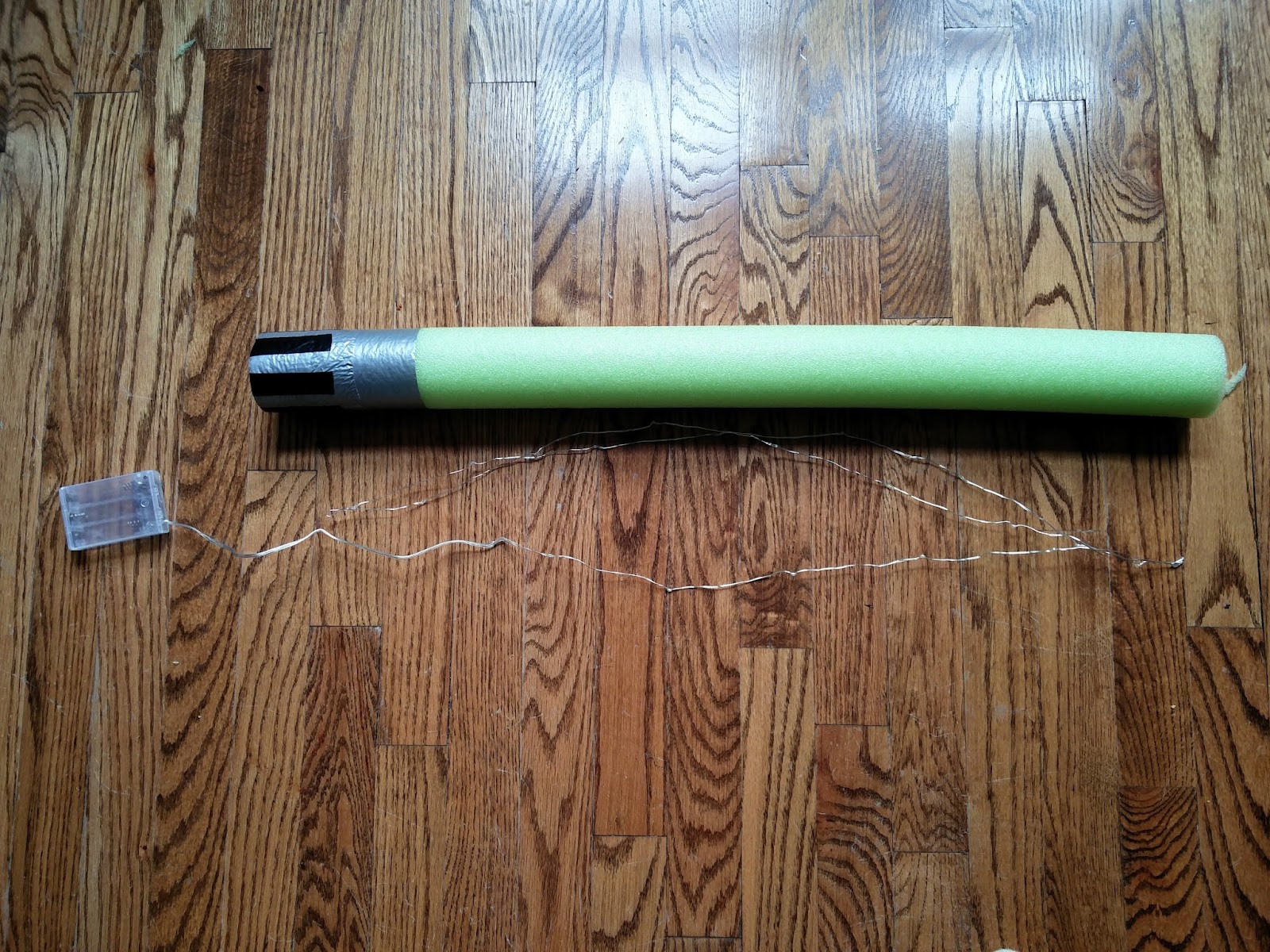
Here is all the stuff you’ll need:
a string of LED lights
duct tape
black electrical tape
scissors
a knife
First, I cut the noodle in half.
I did three layers of duct tape.
Then I put on 6 strips of black tape.
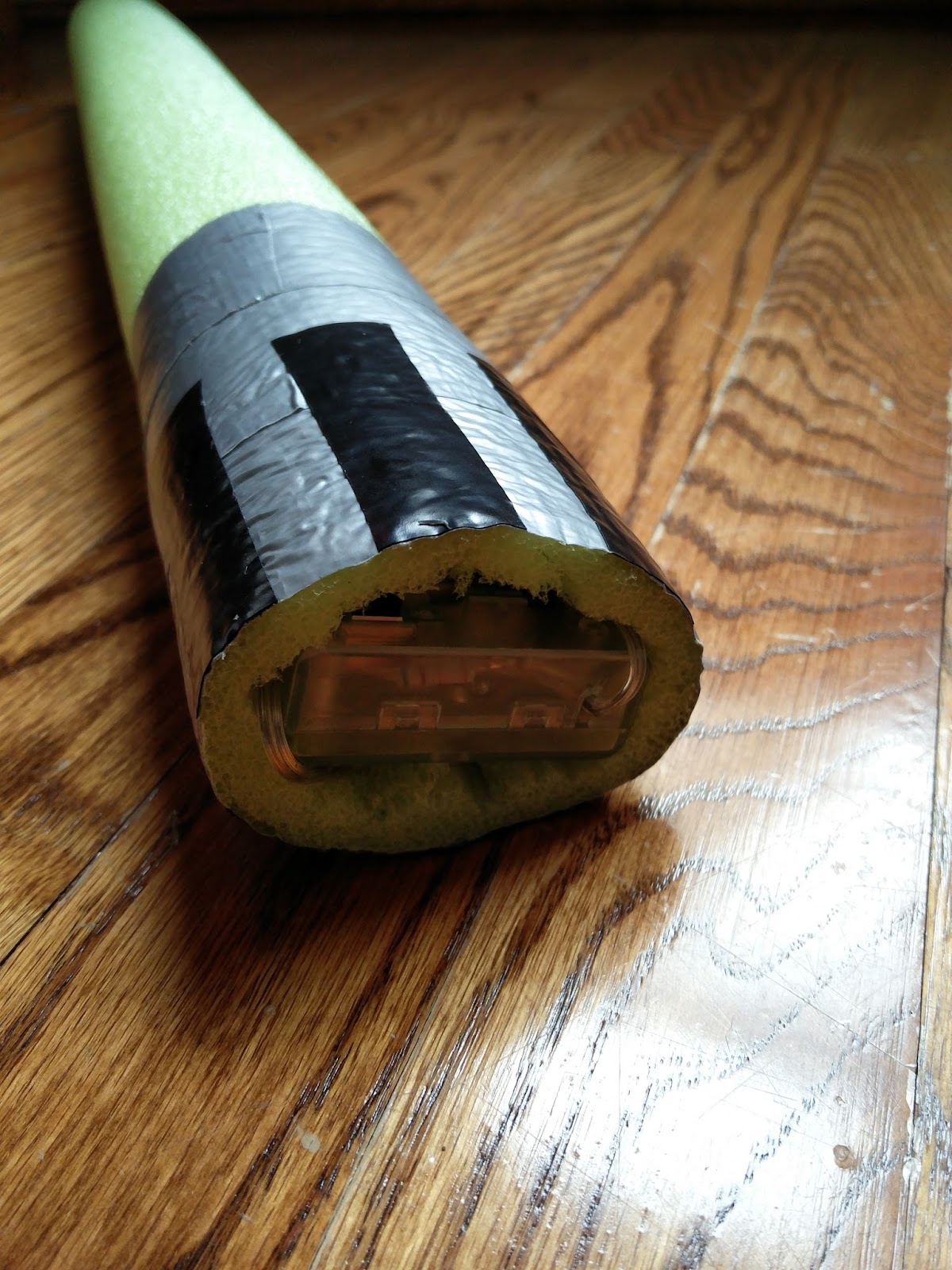
Then I cut the inside of the pool noodle.
Then I folded the lights 3 times.
Then I put the lights in with the switch on the bottom.
This is what it looks like in action.
If you have a small cell phone, you can put it in too to make lightsaber sounds.
AGAIN: DO NOT LEAVE ONE OF THESE ON UNATTENDED!
How To Make A Glowing Lightsaber






0
comments
[
Labels:
kids,
making
]

Barn-Raising Community - Missing Jake Brewer

One of the remarkable things about working on team CTO as part of the Office of Science and Technology Policy (OSTP) at the Executive Office of the President (EOP) is that a very large percentage of our teams are temporary. That means that the very small more permanent staff here builds and rebuilds teams even more quickly than startups in Silicon Valley.

What is remarkable is not only that those quickly made teams work together well, but also that they come together as a community so thoroughly. This barn-raised community can seem constructed or fictional at times. We work hard together and the focus is often on getting work done rather than building community so we don’t always realize that we are building a strong community.

Then on Saturday, Jake Brewer, a Senior Policy Advisor on team CTO and huge inspiration to many inside and outside of government died while participating in the Ride to Conquer Cancer. Jake joined team CTO in June and has been working hard on connecting the nation’s tech and innovation assets (people, places, tools, data, and methods) to its opportunity creation efforts, enabling all Americans to take part in, contribute to, and benefit from the economy of the future. More than that, Jake was an overwhelmingly friendly, crazily optimistic, always energized, and incredibly caring part of the team CTO, OSTP, and EOP communities. The reality and strength of those communities was made startlingly apparent by his passing. The barn we were raising is now missing a wall and every other bit is shuddering from the blow.

Jake was a big part of the strength of our team and we will miss him dearly. I will miss his smile, attitude, and presence. I am also sad that I won’t get to see his next set of wonderful things come to pass in the world. But I am thankful to have known and worked with him. I am thankful he was part of our community and for the dents he made in the universe.

Jake was a big part of the strength of our team and we will miss him dearly. I will miss his smile, attitude, and presence. I am also sad that I won’t get to see his next set of wonderful things come to pass in the world. But I am thankful to have known and worked with him. I am thankful he was part of our community and for the dents he made in the universe.
All images from The James Way, James Manufacturing Co., Fort Atkinson, Wisconsin (1917) and available in the public domain via Google Books.
0
comments
[
Labels:
usgov
]
New Job
Excited to be headed to @whitehouseostp to work w/ @smithmegan & other great folks in govt on technology policy. Lots to learn and do.
— Alex Macgillivray (@amac) September 4, 2014
0
comments
[
Labels:
about
]
Label Emails Awaiting Response
I have been horrible at responding to personal email while taking time off. Rather than declare bankruptcy or write a pithy autoresponder, I was spurred by an acquaintance to figure out a way to mark threads in Gmail that may be awaiting a response from me. As a result, I got to learn about Google Scripts, finally sign up for my own Github account and virtually meet @hijonathan.
Jonathan Kim had the opposite problem from me. He sent a bunch of emails that he wanted to be reminded of when the recipient had not responded. He wrote a great script and published how to install it. I made some very slight modifications to his script to do the opposite (see below).
The AwaitingResponse.js script will look through your inbox for threads messages to you that are between 5 and 14 days old but that you have not responded to. It will label those messages “AR” and you can then use a search like this one to diligently respond to those messages. It is easy to customize the script to search a different label, such as just messages Gmail has categorized as “priority,” or for a different period of time.
To install and customize, follow these steps:
- Create a new Google Script (go to https://script.google.com/ and choose "Blank Project" and while logged into your Google account)
- Replace the template code in the blank project with the Awaiting Response code at https://raw.githubusercontent.com/amac0/miscpubliccode/master/awaitingresponse.js
- If desired, change the label to look in, the text for the label where messages will be placed and the age range to search. These are all at the top of the script and the comments will help you decide what to change.
- Save the script by choosing "File|Save" from the Google Script menu.
- Run the script by choosing "Run|main" from the Google Script menu. Go look at your inbox and make sure it worked (it may take a while).
- If desired, set the script to run every day by choosing "Resources|Current project's triggers" from the Google Script menu.
0
comments
[
Labels:
code
]
Quick & Dirty For Setting Up Using Twitter in Python
Let's say you want to post to your Twitter account from a command-line python script. Here are the quick a dirty steps to get up and running with twython. There is another description at the twython site but it isn't as basic as this.
- Install twython with:
sudo pip install twython - Register the application on Twitter
- go to https://dev.twitter.com/apps
- fill out the form and hit "Create your Twitter application"
- From the App "Details" tab, click "modify app permissions" and change to "Read and Write" (it'll take a few minutes for that to be reflected on the app details page.
- Go get your API Keys
- Click on the "API Keys" tab from the Application Detail page
- Copy the API key
- In a terminal window:
- fire up the python interpreter
- import the modules you need:
from twython import Twython, TwythonError - make a variable for your API key:
APP_KEY =
and have it equal the thing you copied from the Twitter site using single quotation marks around it. - Switch back to the Twitter API Key browser page:
- Copy the API Secret key
- Switch back to terminal running the python interpreter:
- make a variable for your API secret:
APP_SECRET = and have it equal the thing you copied from the Twitter site using single quotation marks around it. - use twython to get a object by entering the following in the python interpreter:
twitter = Twython(APP_KEY, APP_SECRET) - then an auth object:
auth = twitter.get_authentication_tokens() - Still in the python interpreter, grab the oauth url copying the URL you see when you type:
auth['auth_url'] - Past the URL into a browser, sign into your account on Twitter if prompted and click "Authorize App." You should get a code, copy that code into your python interpreter window as a variable for the PIN
PIN = - create a variable with the AUTH TOKEN
AUTH_TOKEN=auth['oauth_token'] - create a variable with the AUTH SECRET
AUTH_SECRET=auth['oauth_token_secret'] - Then, in the interpreter, reconnect to Twitter and get the final authorization tokens with the PIN number that you set earlier:
twitter = Twython(APP_KEY, APP_SECRET, auth['oauth_token'], auth['oauth_token_secret'])
final_step = twitter.get_authorized_tokens(PIN) - then look at final_step['oauth_token'] and final_step['oauth_token_secret'] and save them somewhere in the configuration of your app. Also be sure to copy the original APP Key and APP Secret to a variable in your app. Below I use APP_KEY, APP_SECRET, OAUTH_TOKEN and OAUTH_TOKEN_SECRET
- Once you are all done you can use this code in an app to test it:
from twython import Twython, TwythonError
APP_KEY = [the thing you copied from earlier in single quotes]
APP_SECRET = [the thing you copied from earlier in single quotes]
OAUTH_TOKEN = [the thing you copied from earlier in single quotes]
OAUTH_TOKEN_SECRET = [the thing you copied from earlier in single quotes]
# Requires Authentication as of Twitter API v1.1
twitter = Twython(APP_KEY, APP_SECRET, OAUTH_TOKEN, OAUTH_TOKEN_SECRET)
try:
twitter.update_status(status='Just a test, please ignore')
except TwythonError as e:
print e
PS I now use Tweepy instead of Twython but all of this is similar there.
3
comments
[
]


LAMAS Architecture
Recently got to hang out with my brother, James Macgillivray, and catch up on his and his wife's architecture firm, LAMAS. Really cool stuff he and Wei-han Vivian Lee are up too. Plus the LAMAS (Lee and Macgillivray Architecture Studio) site is cool as well and showcases a bunch of their work. Amazing to see what they have already built and looking forward to seeing what they will build in the future.
0
comments
[
]
Google Ngram Viewer Now In "Define"
I've always found Google's definitions to be useful but yesterday I noticed they had added something useful from Google Books to their definitions: understanding a word's usage over time.
For example, a search for "define Twitter" yields:

If you expand the definition by clicking on the big downward arrow, you see a bunch of additional information including this chart of the uses of "Twitter" over time:

Google is drawing on mentions of these words in the corpus of books it has scanned as part of the Google Books project, which I had the privilege of working on while at Google. Indeed this is really just a more visible way of exposing the phenomenal Ngram viewer that Google has improved over the last few years. The Ngram viewer can be used to compare word frequencies and do lots of other interesting stuff. The database of word frequencies over time is also available to the public under the Creative Commons Attribution 3.0 Unported License so that others can build on the data. Here is a view of Twitter versus Tweet in the Ngram Viewer:

Anyhow, this may not be new to the world but it was new to me and is way cool. As the Google Books legal cases continue, it is also another great example of the value of the initiative to the public.
PS Two more I couldn't resist adding. Good luck not spending the next half hour doing your own.


Update: And yes, there are many flaws with relying on the Ngram data to prove a point without further analysis. For examples, see Robusto's discussion on StackExchange.
0
comments
[
Labels:
google,
twitter
]
Subscribe to:
Posts (Atom)
